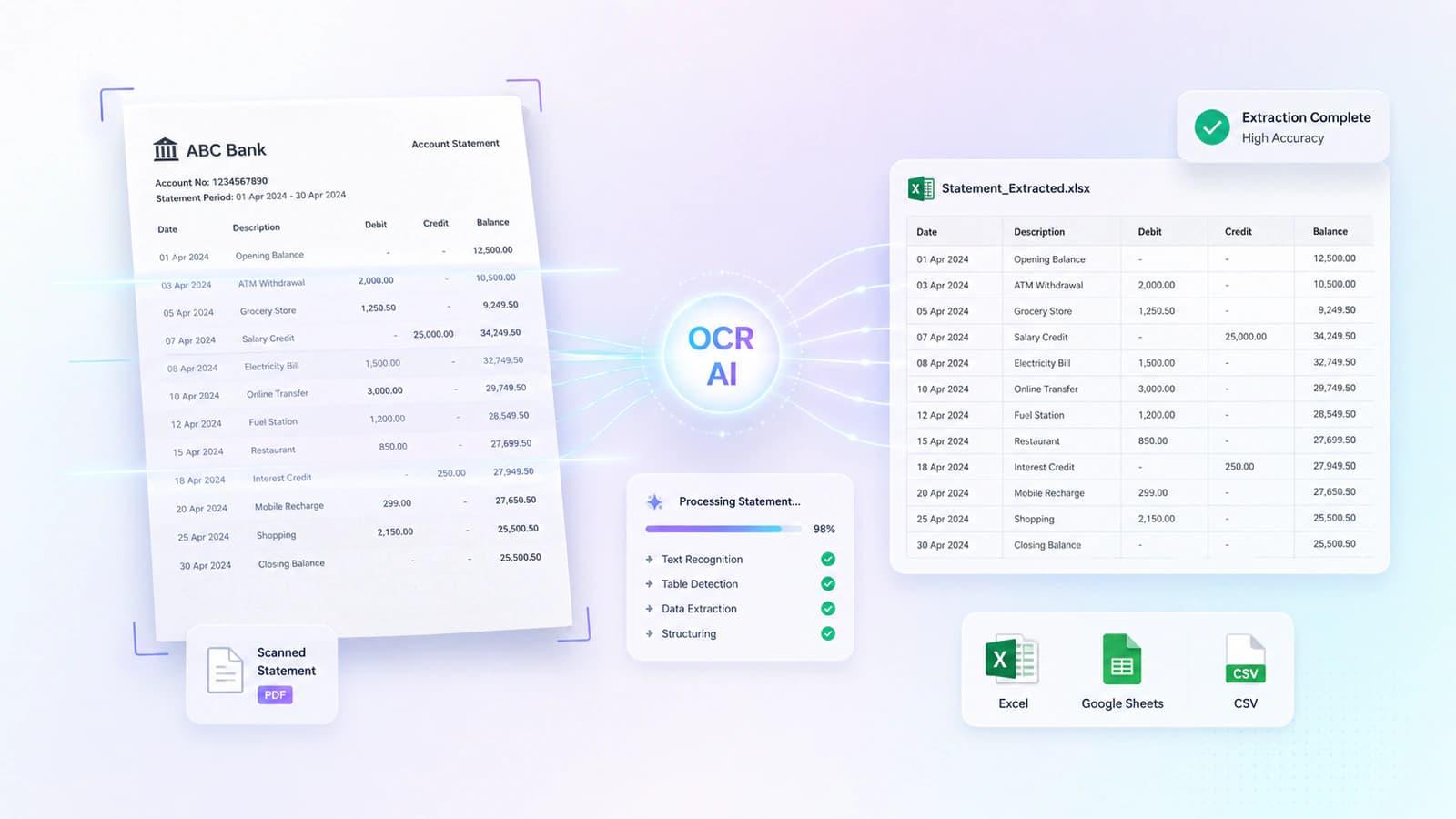
Introduction to PDF to Excel OCR for Bank Statements
PDF to Excel OCR = converting scanned/image PDFs into Excel using OCR
OCR enables text recognition, table extraction, and data structuring
Key difference:
- Standard conversion → works only with text-based PDFs
- OCR conversion → works with scanned/image PDFs
High demand driven by:
- Automation of bank statements
- Reduction in manual errors (1–5%)
- Faster processing (seconds vs hours)
Core entities covered: OCR, scanned PDFs, table detection, Excel formats (XLS/XLSX), financial automation
Users desperately need financial data that has been locked in PDF files. This desire becomes obvious when dealing with financial documents like bank statements, invoices, or reports. This is the scenario where PDF to Excel OCR comes into play. It refers to the process of converting scanned or image-based PDFs to an Excel spreadsheet-based output using Optical Character Recognition (OCR) technology.
Unlike many conversion tools, which only work with digitally generated PDFs, these OCR-enabled systems can read text from images, detect tables, and reconstruct data into rows and columns in formats such as XLS or XLSX. So this process makes available the data that has been in static financial documents into editable spreadsheets necessary for analysis, reporting, and automation.
OCR is essential for financial documents because these documents do not expose a text layer for data extraction. OCR technology makes it possible by employing text recognition, image processing, and table detection algorithms. OCR deals with complex layouts with multiple columns, merged cells, and multi-page structures.
Due to the increasing use of automation these days, OCR-enabled bank statement to Excel conversion is getting traction. As accountants, financial analysts, and administrative teams no longer want to remain on manual data entry for financial data, as this process usually carries an error rate between 1–5% error rate and hours of work too. This mood change is part of a trend toward data digitization and workflow automation, where tools not only convert files but, after extraction, help to gain deeper financial insight, help in reporting, and enable processes to integrate with accounting systems.
What is OCR and How It Works in PDF to Excel Conversion
OCR = converts image/scanned PDFs into machine-readable text
Core components:
- Text recognition
- Image processing
- Pattern detection
Extraction workflow:
- Table detection → text layer creation → data structuring → Excel output
OCR vs non-OCR:
- Non-OCR → only text-based PDFs
- OCR → scanned/image PDFs
Accuracy: up to ~99% depending on quality
Limitations: poor scans, handwriting, complex layouts
Key entities covered: OCR, table detection, text layer, XLSX output, scanned PDFs, bank statement extraction
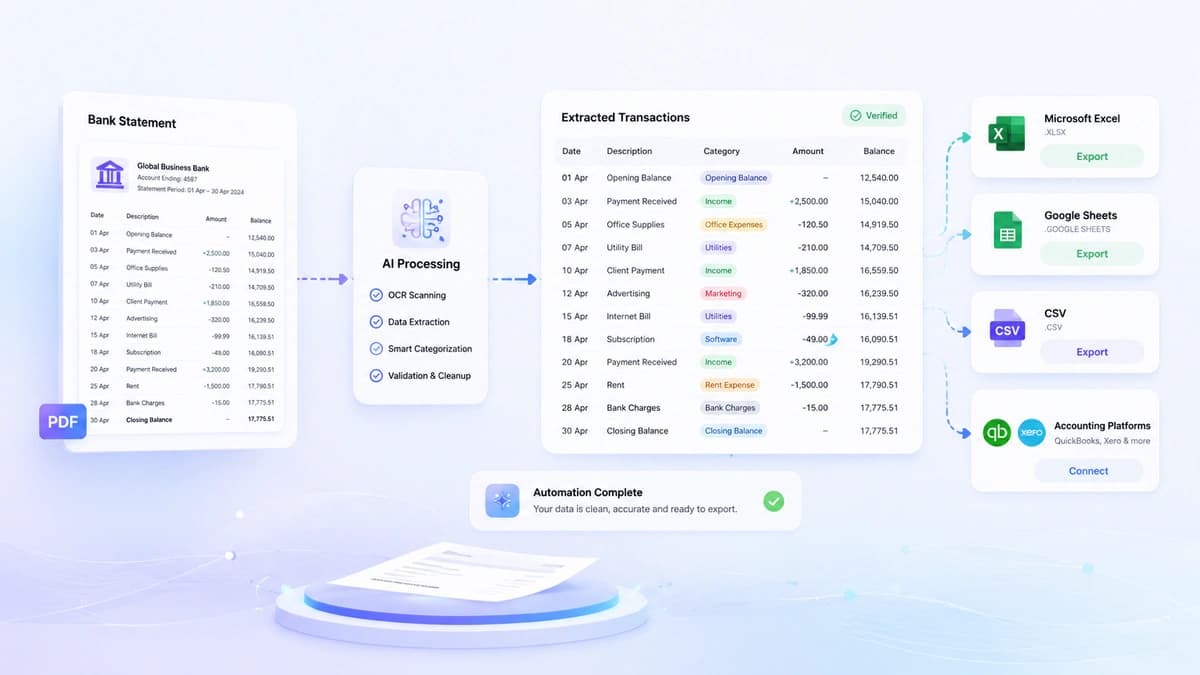
Understanding Optical Character Recognition (OCR)
Optical Character Recognition (OCR) is the backbone of PDF to Excel OCR technology. In its simplest form, OCR converts visual content such as scanned documents, images, and photos into machine-readable text. This process enables the system to interpret characters, numbers, and symbols that are otherwise locked in PDFs.
Mian concept of OCR revolves around two concepts text recognition and image processing. In the first stage, the system scans the document and characters, words, and layout patterns are identified. In the second phase, pattern recognition and trained models are applied to interpret these visual elements into actual text data.
I think what makes modern OCR so powerful is not its letter recognition ability but understanding the context of the document. For example, data, transaction amount, and column header are identified and presented accordingly in a bank statement. The OCR system has been designed to handle structured data like tables, numeric values, and repeated formats.
How OCR Extracts Data from Scanned PDFs
When a scanned PDF is converted to Excel, the OCR engine performs a series of operations. This is not a simple copy-paste operation, but it involves intelligent detection and reconstruction of data.
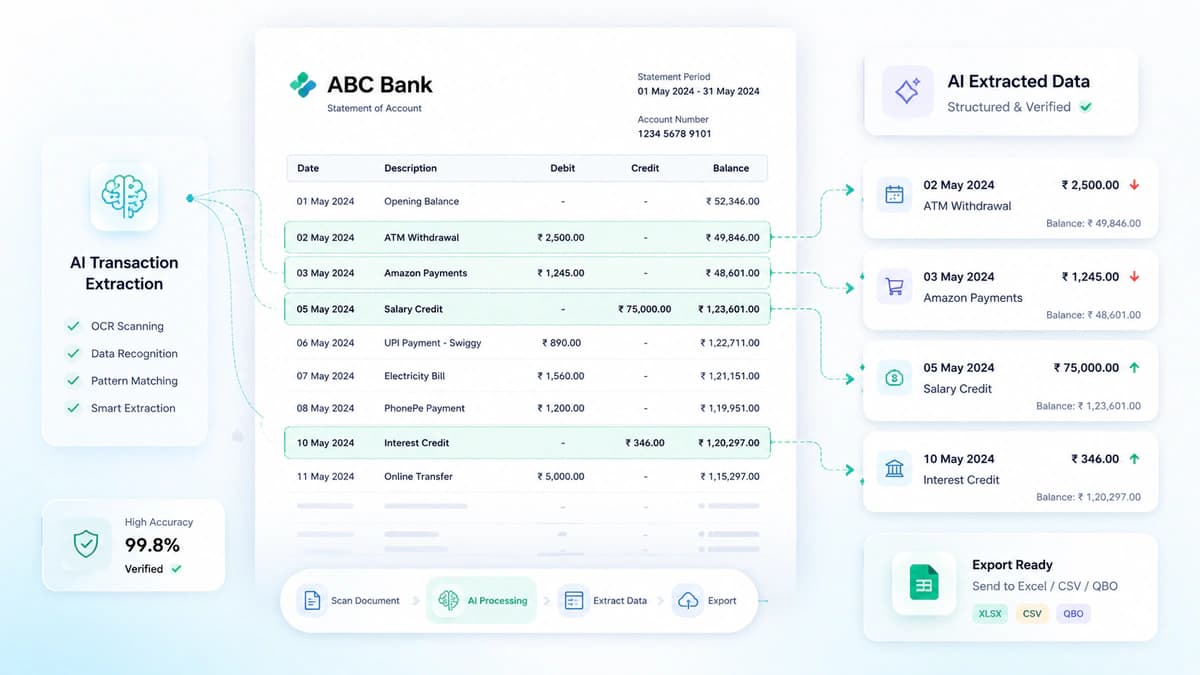
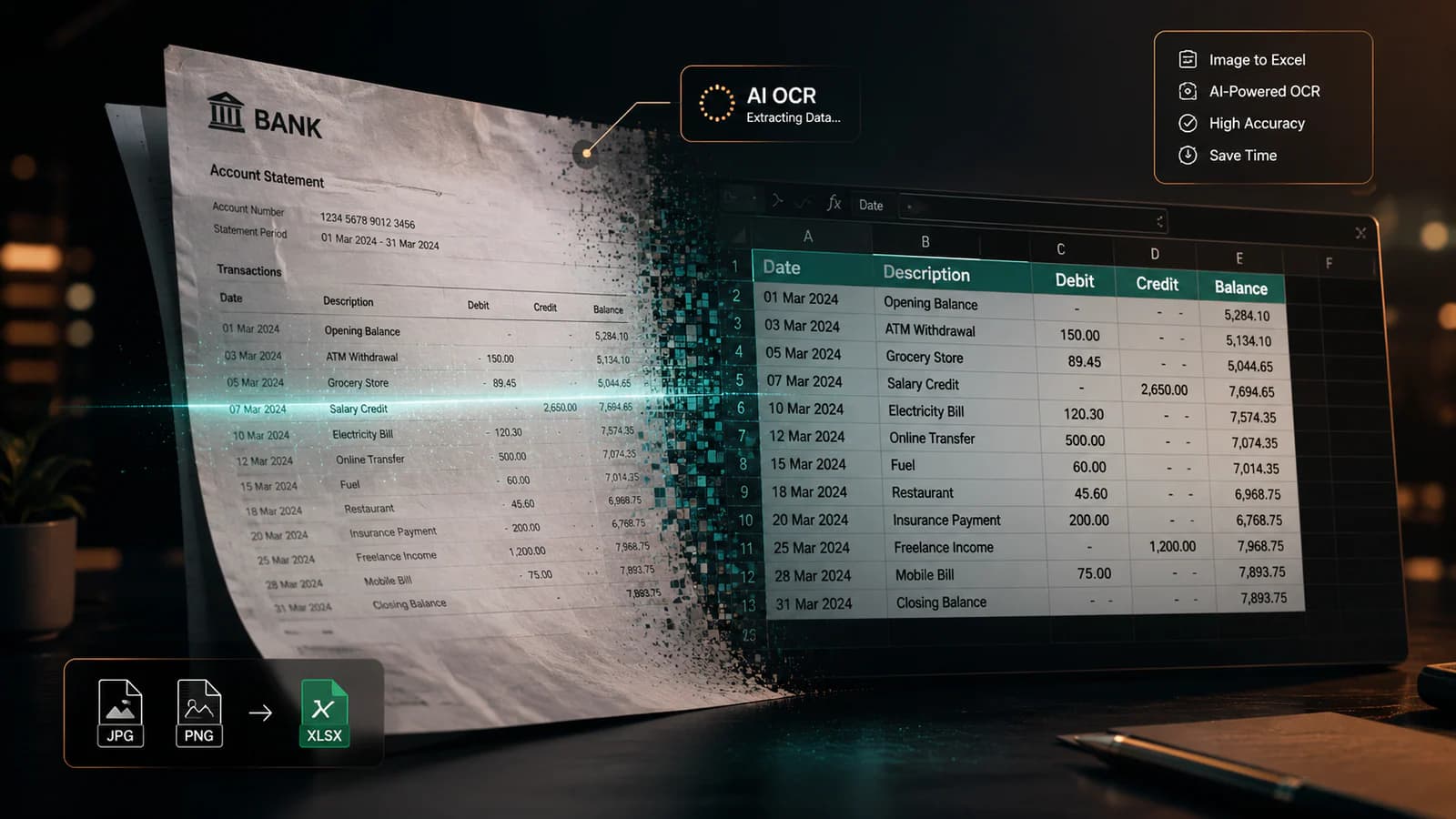
In scanned bank statement conversion, the first step is the table detection process, where the system recognises rows of transactions, columns for dates, descriptions, debits, credits, and balances. Modern tools like ours, aibankstatementconvert.com, use AI-powered table recognition for handling complex and irregular formatting.
After this stage comes the text layer recognition, normally scanned PDFs don't have a text layer, so OCR creates one by interpreting the visual elements. But if the text layer is already there, it will go with it, and this improves efficiency.
Finally, the data structuring is done to transform it into Excel rows and columns. This mapping is done using the rules like transaction dates are one column, Descriptions are combined, if on multi row, and then placed in another column, debit/credit values to numeric columns, and running balance to another column.
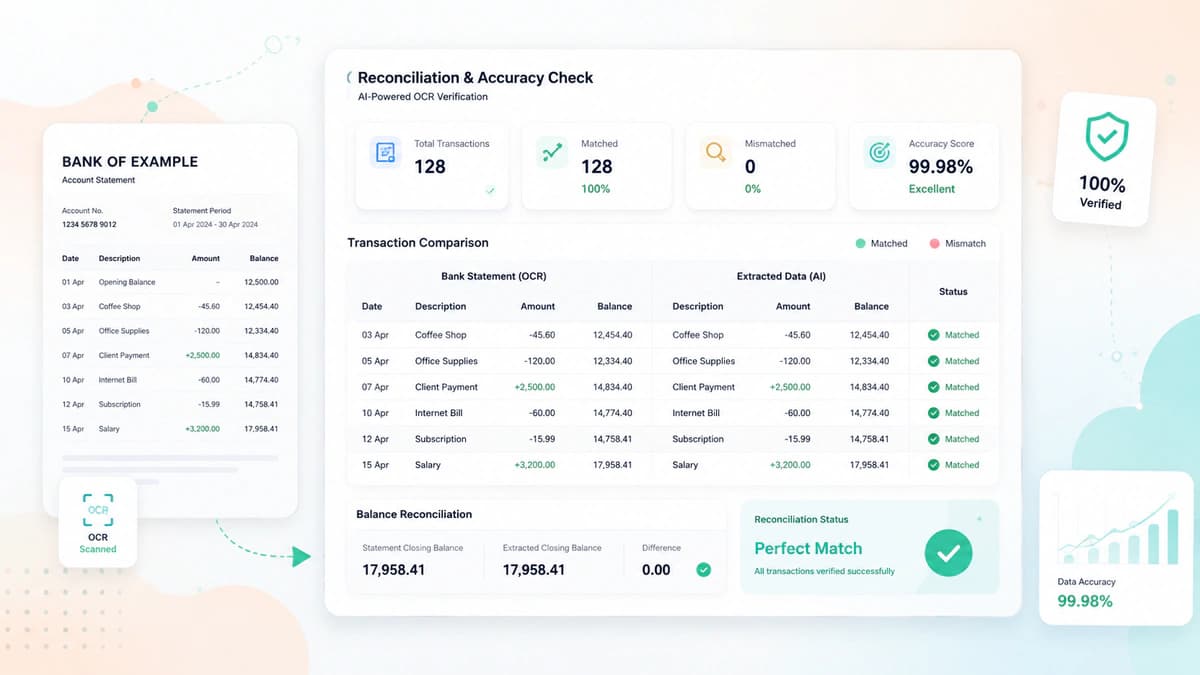
OCR vs Non-OCR PDF Conversion
The core difference is that non-OCR conversion works where PDF already has selectable text in such a case, the converter simply extracts the text later and presents it as Excel. On the other hand, OCR conversion is essential where you have to deal with scanned bank statements, image-based PDFs, photos of documents, or legacy / archived files.
OCr tools claim to have 99% accuracy, but this is not a rule, all depends on factors like scan quality, resolution (ideally 200–300 DPI), and document clarity.
According to me, the scalability is the main advantage of this process, not the perfection. It saves hours of manual work as the converters make the entire process automated.
Why Use OCR for Bank Statement Conversion
Manual data entry issues:
- Error rate: 1–5%
- Time-consuming (hours per document)
- Not scalable for bulk processing
OCR benefits:
- Automates financial data extraction
- Accuracy up to ~99%
- Converts PDFs in seconds
- Reduces manual workload
Key entities covered: PDF to Excel OCR, scanned PDF to Excel, bank statement OCR converter, XLSX spreadsheets, automation, accuracy, scalability
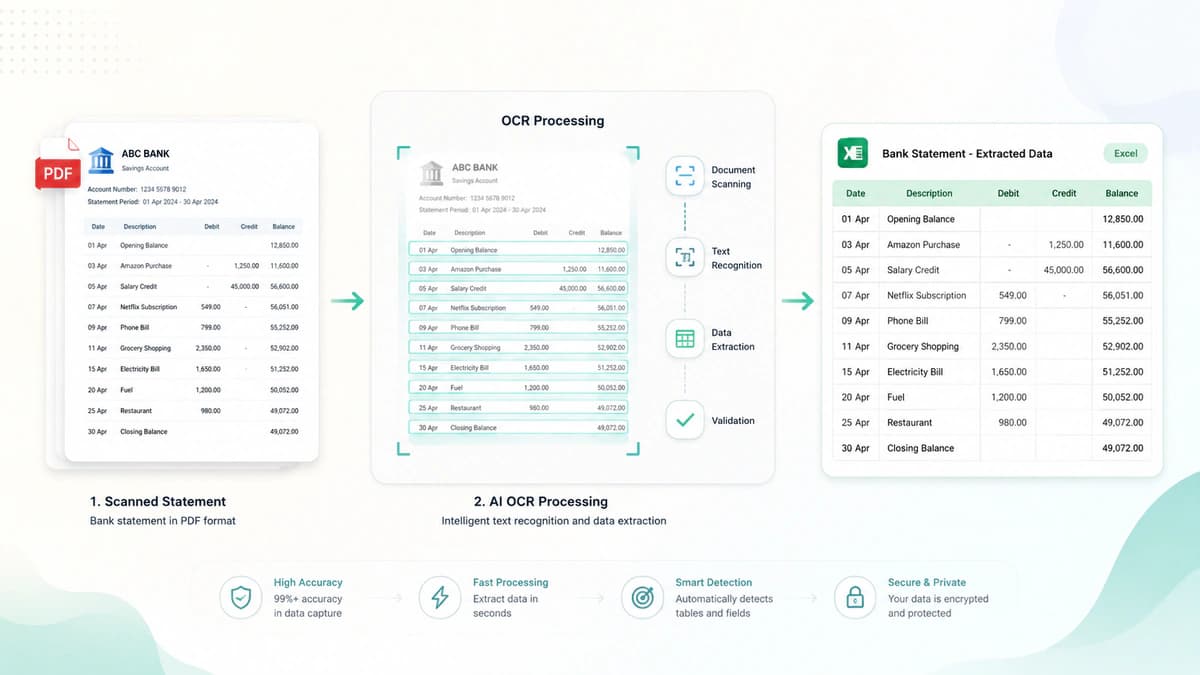
Challenges with Manual Data Entry
Extracting financial data from bank statements was a manual process before the widespread use of tools like PDF to Excel with OCR. Transaction details, dates, and balances have to be entered in spreadsheets line by line.
Manual data entry has many issues, like incorrect reporting, reconciliation mismatches, or flawed analysis, which may happen when even small variations occur in financial data during conversion. Real-world observations show that 1–5% error rates are likely to happen when doing this process manually. Further hours of manual work are needed to do this conversion manually.
I have observed that a bank statement OCR converter is inevitable, where the question of scalability comes as the huge volume of work can not be done using a manual process.
Benefits of OCR Bank Statement Conversion
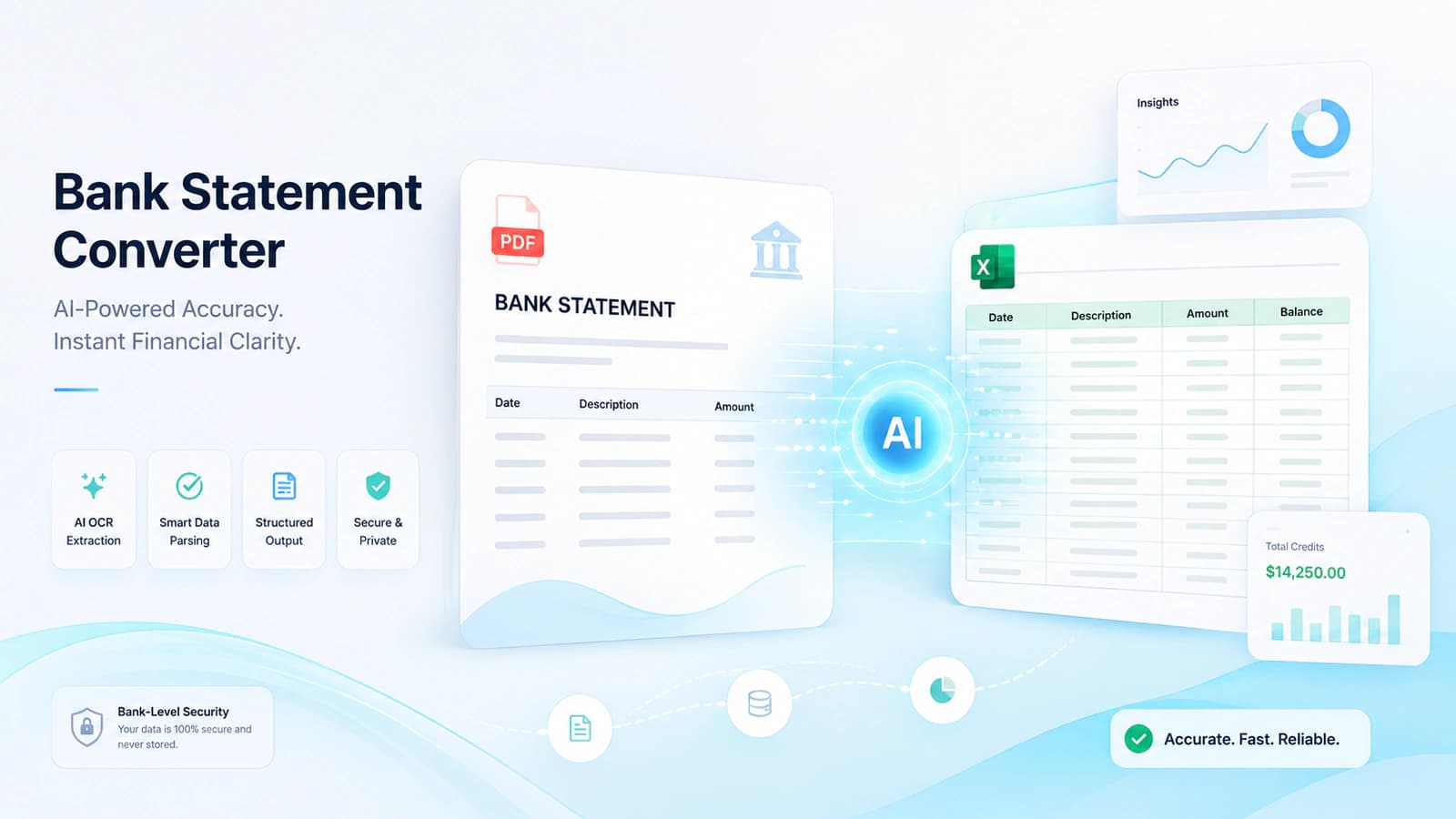
OCR systems can process bank statements, invoices, and reports, automatically detecting tables, extracting values, and organizing them into usable formats like XLSX spreadsheets. This allows businesses to integrate data directly into accounting systems, dashboards, or reporting tools. These tools can convert data with accuracy upto 99%. Further speed and volume handling are the top benefits of using these tools.
Step-by-Step Guide: Convert PDF to Excel with OCR
- Workflow: Upload → Enable OCR → Process → Download
- Step 1: Supports PDF, scanned, and image-based files
- Step 2: OCR activation + language selection improves accuracy
- Step 3: AI extraction + table recognition + data structuring
- Step 4: Output in XLS/XLSX as editable spreadsheets
- Key entities covered: PDF to Excel OCR, scan PDF to Excel, table detection, multi-language OCR, XLSX output, bank statement conversion
Converting a bank statement using PDF to Excel OCR tools is straight forward an dhas been designed to be highly effective.
Step 1 – Upload Bank Statement PDF
Simply upload your document to the converter. The supporting format ranges from standard PDF files, scanned PDFs, to image-based PDFs (such as photos or scanned receipts).
This flexibility is critical as many documents are not digitally generated but scanned or exported without a text layer.
Step 2 – Enable OCR & Select Language
As the file has been iploaded than, the next process is to enable the OCR for further processing. Many tools automatically apply OCR as soon as these dectect that a scanned or image-based document is encountered. Some tools have features of multi-language selection so that the parsed content is accurately detected.
All the above adjustments ensure that the system can properly recognize text content, numeric values, and symbols/formatting patterns
Step 3 – Process Conversion
After the OCR is enabled and the language selected, actual extraction begins. A capable bank statement converter performs AI-powered extraction to analyze the document layout, table recognition to identify structured data such as transaction rows and columns, text layer
creation for scanned PDFs and data structuring into spreadsheet format.
Step 4 – Download Excel File
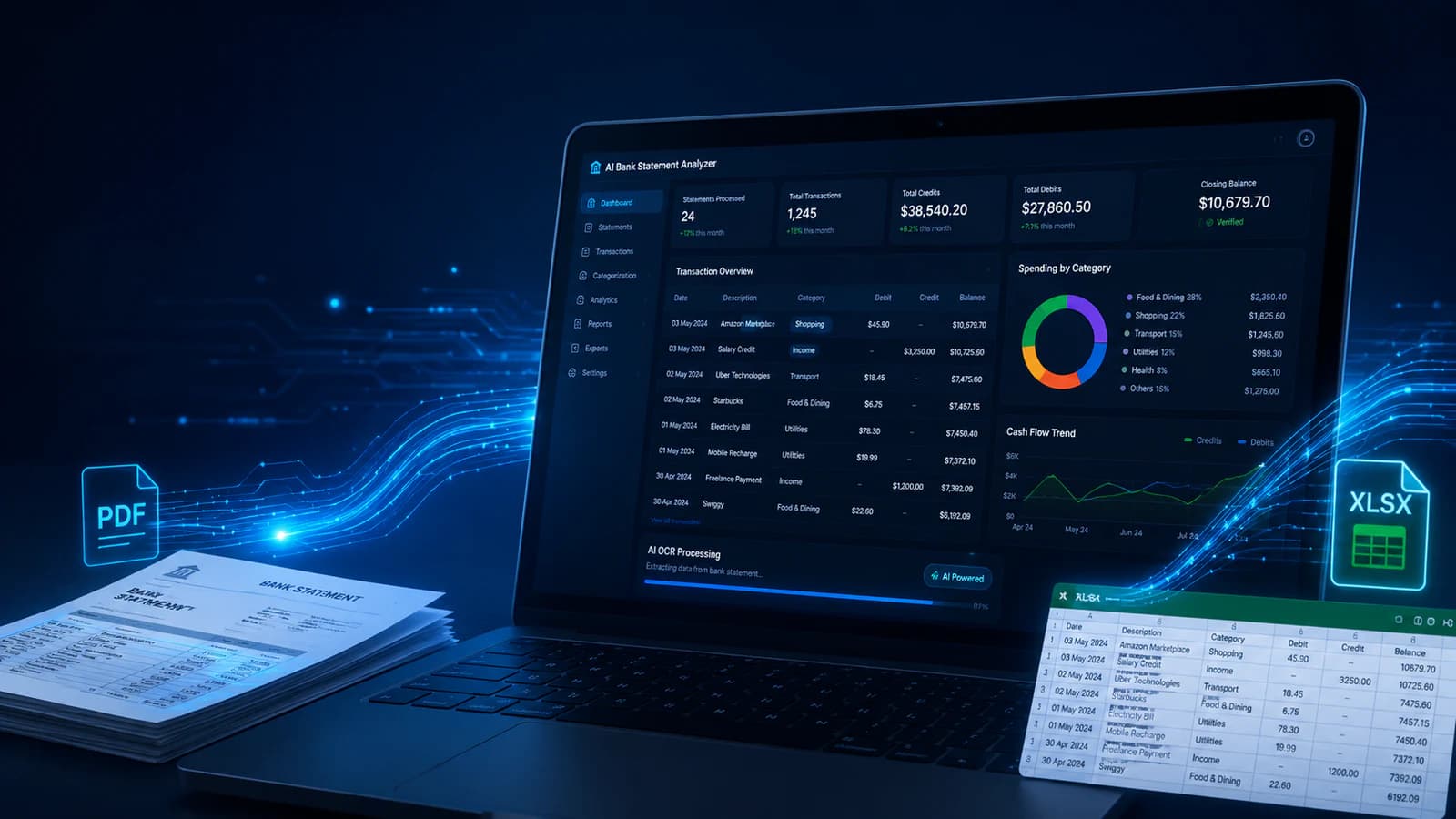
Once the magic ends, the final converted file is available for download in XLS or XLSX format. An Excel spreadsheet enables users to apply formulas, filter transactions, perform financial analysis, and integrate data into accounting software.
Best Use Cases for OCR Bank Statement Conversion
Financial use cases:
- Bank statement analysis
- Expense tracking
- Budgeting
Business operations:
- Invoice processing
- Sales reporting
- Audit preparation
Data & research:
- Data extraction from reports
- Historical document digitization
Core benefits: automation, faster processing, improved accuracy
Key entities: scanned PDF to Excel, OCR workflows, financial data extraction, Excel analysis
Financial & Accounting
When the data has been converted, and it's now available for the user in digital form than user may perform reconciliation, identify discrepancies, or analyze spending patterns. Businesses desperately need a cash flow position for their financial planning. This can be done when data is available for manipulation in Excel spreadsheets.
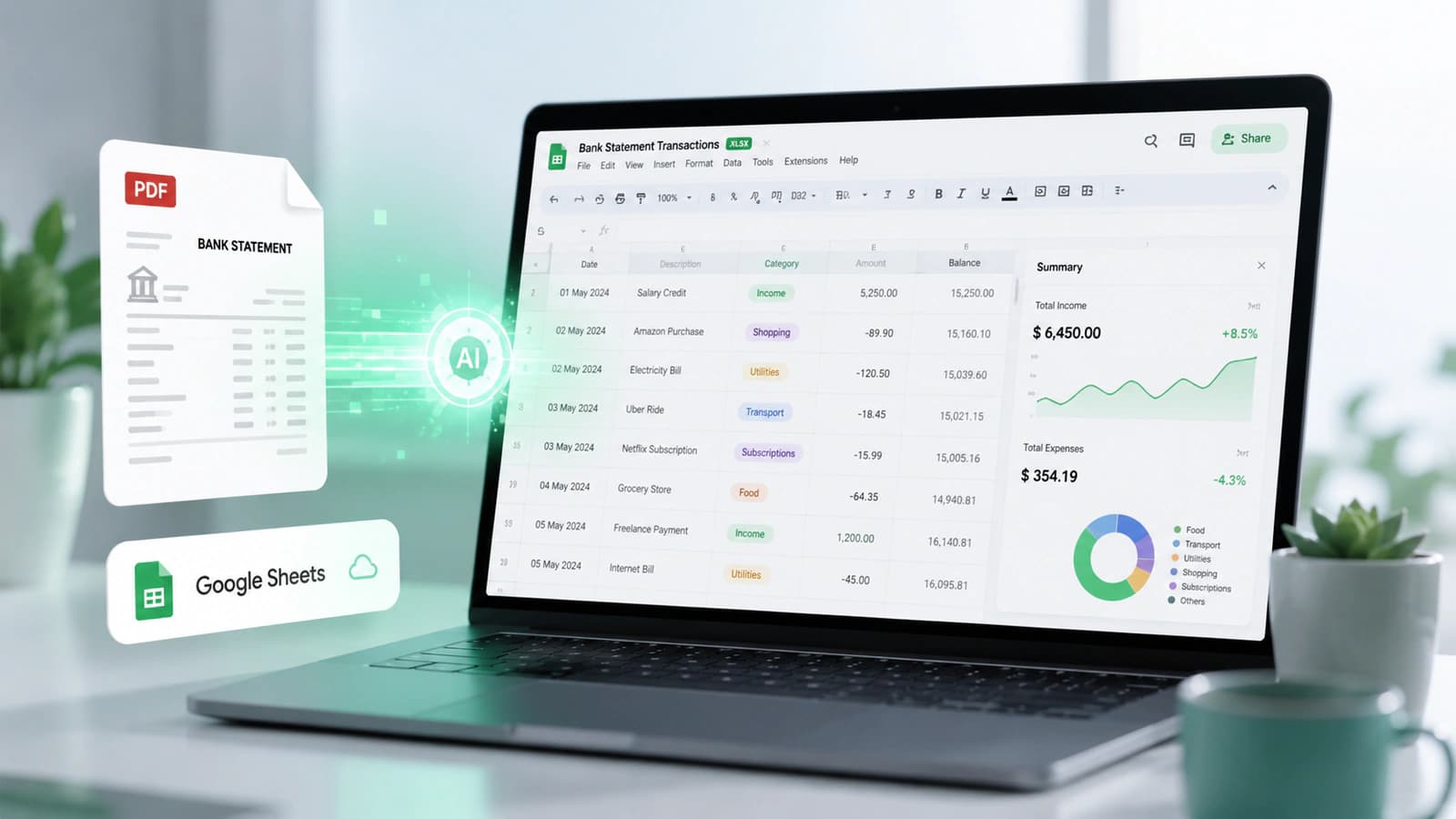
Businesses convert monthly statements into Excel and track expenses automatically. In budgeting, historical data is transformed into spreadsheets, and now the post-budget analysis can be performed efficiently.
Business Operations
Many operations in businesses are facilitated by converters like these. In invoice processing, OCR tools extract line items, amounts, and vendor details from PDF invoices. This empowers accountants to integrate auto invoices into accounting systems.
Sales reports received in different PDF formats from various companies are transformed using such converters into Excel, and trends are analyzed, performances compared, and insights generated for achieving efficiency.
In audit preparation, auditors convert bulk data into Excel to apply sampling procedures and compliance checks. Transaction validation is conducted, and regulatory assurance is complied with.
Data & Research
In data research, structured data from PDF documents like financial summaries, research papers, or statistical reports is obtained for further analysis. In organizations where digitization is being conducted for legacy historical documents, archived bank statements, paper records, or scanned documents are transformed into Excel using these converters. This enables them to be searchable, analyzable, and ready for integration into modern systems.
OCR Accuracy, Limitations, and How to Improve Results
Accuracy depends on:
- DPI (optimal: 200–300)
- Image clarity
- Document layout complexity
Limitations: complex layouts, poor scans reduce accuracy
Optimization tips:
- Use high-quality scans
- Select the correct OCR language
- Clean and preprocess documents
Key entities: OCR accuracy (~99%), DPI, image processing, layout complexity, multi-language OCR
Factors Affecting Accuracy
The effectiveness of the conversion process depends on the quality of the scanned document/image and the structure of the tabular data in the underlying document. Although tools claim accuracy up to 99% but achiving this requires that the DPI (dots per inch).of the scanned document to be 200–300 DPI, which provides enough detail for accurate character recognition.
Image clarity also plays a critical role here, as images with good text and background contrast improve accuracy. Documents with noise, stains, or uneven lighting can reduce performance.
Another factor affecting our performance is layout complexity. A document with well-structured display and clear rows and columns is easy to process. But bank statements with irregular layouts, overlapping elements, or inconsistent formatting can be a nightmare even for advanced OCR engines.
Tips to Improve OCR Results
Improving the quality of the tool means less about the technology, and more about how the document is prepared before conversion. According to my experience, using high-quality scans (200–300 DPI) is the most effective step.
Proper language selection is a must for guiding the OCR engine on how to interpret the extracted test content. Further, if you can, then preprocess your document and clean any formatting before submitting it to the OCR engine. Format cleaning involves removing unnecessary elements such as stamps, annotations, or background noise. This significantly improves performance.
Security and Compliance in Bank Statement OCR Conversion
Security essentials in PDF to Excel OCR:
- Encryption: RSA, SHA-256
- GDPR compliance
- Automatic file deletion policies
Sensitive data risks: bank statements, financial records
Tool types:
- Cloud → convenient but requires trust
- Desktop → more control and privacy
Core entities: encryption, GDPR, financial data security, OCR processing, cloud vs
local
User upload their sensitive financial data to these tools for conversion. Now security is not optional here its the core pillar and necessity of such tools. Sensitive financial data includes account details, transaction histories, and personal financial information.
These modern tools use various safeguards to ensure security, such as data encryption using strong protocols like 2048-bit RSA and SHA-256 during upload, processing, and download. This guarantees that if data is intercepted, then it may not be read.
Another essential aspect is GDPR compliance, meaning that user data is handled responsibly, with strict controls over storage, processing, and access.
These tools ensure that user data is not stored permanently on the servers, and OCR tools automatically delete uploaded and converted files after a short period.
Frequently Asked Questions
What is pdf to excel with ocr?
This process converts PDFs that are scanned or image based in to editabale Excel spreadsheets. Optical Character Recognition (OCR) is employed that can read text from images and reconstruct tabular data, and then map it in rows & columns in Excel for usability.
How to convert a scanned PDF to Excel?
Upload your file into a PDF to Excel converter ocr, enable OCR, select the correct language, and process the file. The tool will extract tables and convert them into an editable XLSX spreadsheet within seconds.
Can OCR handle bank statements accurately?
Yes, modern OCR tools can achieve up to 99% accuracy under optimal conditions. Accuracy depends on factors like scan quality, DPI, and document layout.
Is it safe to use online OCR tools?
Most reputable tools use encryption (RSA, SHA-256), GDPR compliance, and automatic file deletion policies. However, for highly sensitive data, desktop tools may provide additional security.
Can I batch convert bank statements?
Yes, many advanced tools support batch conversion, allowing you to process multiple PDFs files simultaneously, which is ideal for businesses handling large volumes of financial documents.
Final Thoughts
Selection of the right tools is critical for businesses. As there are so many tools available in the marklet so to make decission features list is not enough, but practical requirements are the core deciding factor.
The first such factor is accuracy. A reliable converter should deliver structured, error-free, and proper tabular data in rows and columns. As the financial data is sensitive, a small variation in such data may lead to inaccurate reporting or analysis. The second important factor in this regard is speed and scalabaility that is processing large volumes of documents at once and quickly. Tools that can support multi-page conversion and bulk upload definitely have an advantage over others.
Security is equally critical. Tools should ensure that strong encryption standards have been adopted and that compliance with frameworks like GDPR is in place. Tools should not retain files on servers should get these deleted for security reasons.
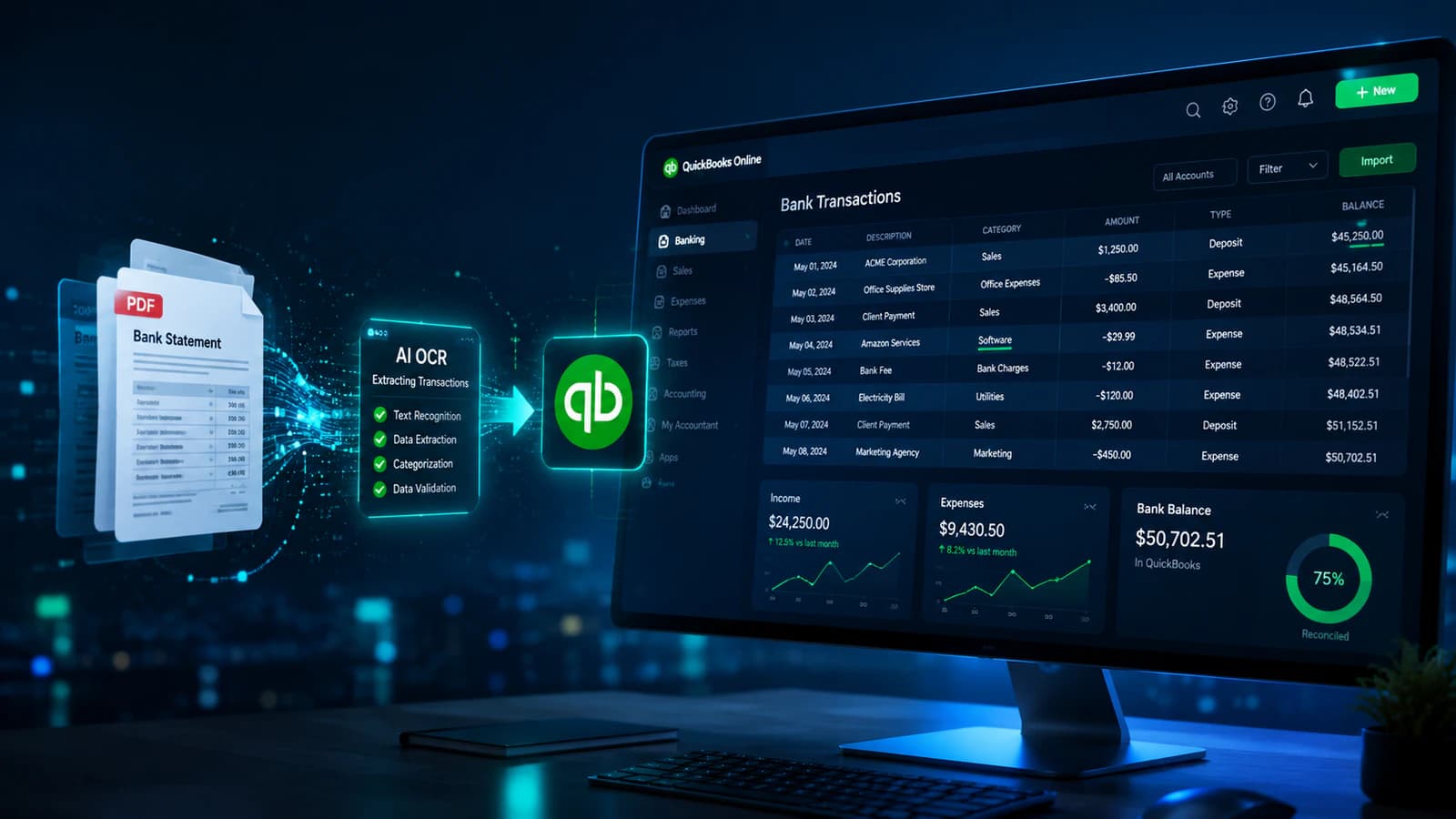
Another important aspect is ease of use and integration of the output to the popular accounting software, reporting systems, or data analysis platforms.
Looking ahead, the future of OCR lies in its adaptation to automated workflows and AI-powered intelligent data extraction. As the tools are becoming more and more capable of handling complex layouts, multi-language content, and contextual understanding, the role of OCR extraction in financial operations will expand.
Hope you enjoyed this guide!
Conversation0 Comments
Write a comment ↓Leave a Reply
Your email address will not be published. Required fields are marked *
Login Required
Please sign in to join the conversation.